Article
15 May 2026
If you’re planning to start working with Exocad or your current workstation feels slow, unstable, or frustrating there’s something important you should know.
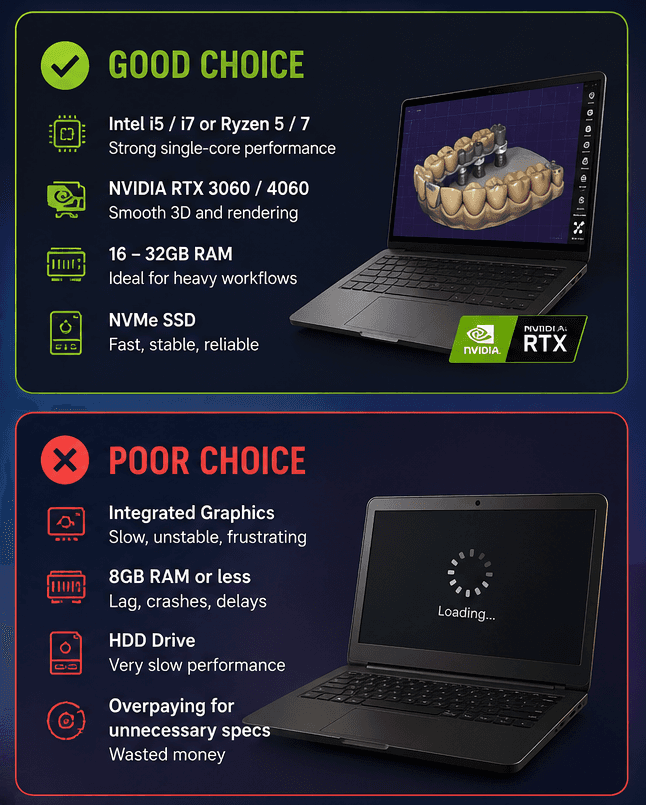
Most people buy the wrong computer for DentalCAD
Some overpay for “gaming monster” PCs they don’t actually need.
Others buy office laptops that struggle with real 3D dental work.
The result?
Slow design workflow
Lag during modeling
Crashes on larger cases
Wasted money
Lost time every single day
And in a dental lab, time matters.
The biggest myth: “I need the most powerful PC possible”
Not true.
For Exocad, balance matters more than extreme specs.
A lot of beginners think:
“I need 64GB RAM”
“I need RTX 4090”
“I need a crazy gaming setup”
In reality, many successful dental technicians work perfectly fine with:
Intel i5 / i7
16–32GB RAM
NVIDIA RTX 3060 / 4060 class GPU
Fast SSD
The goal is not to build a NASA computer.
The goal is:
smooth workflow,
stable rendering,
fast loading,
reliable daily work.
Why NVIDIA matters for Exocad
This is one of the most common mistakes.
Many people buy laptops with:
Intel Iris Xe
AMD integrated graphics
cheap office GPUs
Then wonder why the software feels terrible.
Exocad works significantly better with dedicated NVIDIA graphics cards.
That means:
smoother 3D interaction
better viewport performance
more stable rendering
fewer graphical bugs
Even a mid-range NVIDIA GPU often performs better for DentalCAD than an expensive ultrabook with integrated graphics.
Laptop or desktop?
Both can work.
Laptop advantages
portable
easy to work remotely
good for small labs or home setups
Desktop advantages
better cooling
more performance per dollar
easier upgrades
usually longer lifespan
If you work full-time in CAD design every day, a desktop workstation is often the better long-term investment.
What actually affects Exocad performance?
These are the 4 things that matter most:
1. CPU
Exocad likes strong single-core performance.
Modern Intel i5/i7 or Ryzen 5/7 processors are usually excellent.
2. GPU
NVIDIA is strongly recommended.
RTX 3060 / 4060 level is already more than enough for most users.
3. RAM
16GB = acceptable
32GB = ideal for heavier workflows
4. SSD
Never use old HDD drives.
A fast NVMe SSD makes the entire system feel dramatically faster.
The hidden problem nobody talks about
Many “cheap” systems become expensive later.
Why?
Because people:
buy weak laptops,
struggle for months,
then upgrade again,
lose time,
lose motivation,
and sometimes lose clients due to unstable workflow.
Buying correctly once is usually cheaper than fixing mistakes later.
Final advice
If you’re starting with Exocad:
don’t chase extreme specs,
don’t buy the cheapest office laptop,
and don’t trust random gaming marketing.
Build a setup specifically for DentalCAD workflow.
A properly configured mid-range workstation can easily outperform an overpriced “gaming beast” for real dental work.
And honestly stability and workflow matter far more than flashy RGB lights.
Need help choosing a setup for Exocad?
I help dental technicians choose stable, properly configured systems for DentalCAD workflow without overspending on unnecessary hardware.
You can also message me if:
you’re unsure about your current PC,
planning your first setup,
or want to know if your laptop is compatible with Exocad.